
1. Log in to Komunily as an Administrator and access the course settings
Ensure you have the necessary permissions to edit courses.
Accessing Edit Mode for a Learning Course
Method 1: Direct Course Edit from the Learning Catalogue
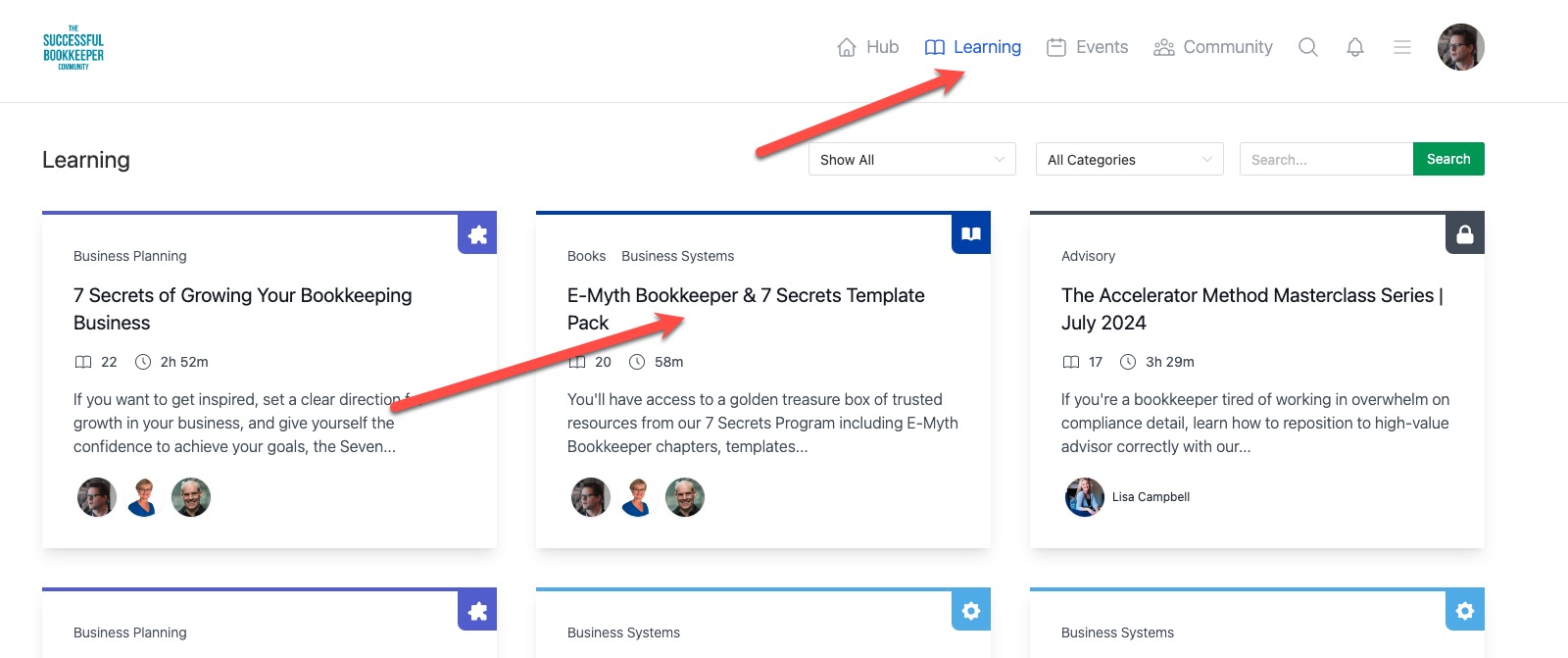
Click on Learning Catalogue and click on the course you wish to edit.
Look for the pencil and gear icon next to the lesson name.
Pencil is to edit the current lesson
Gear is to edit the course
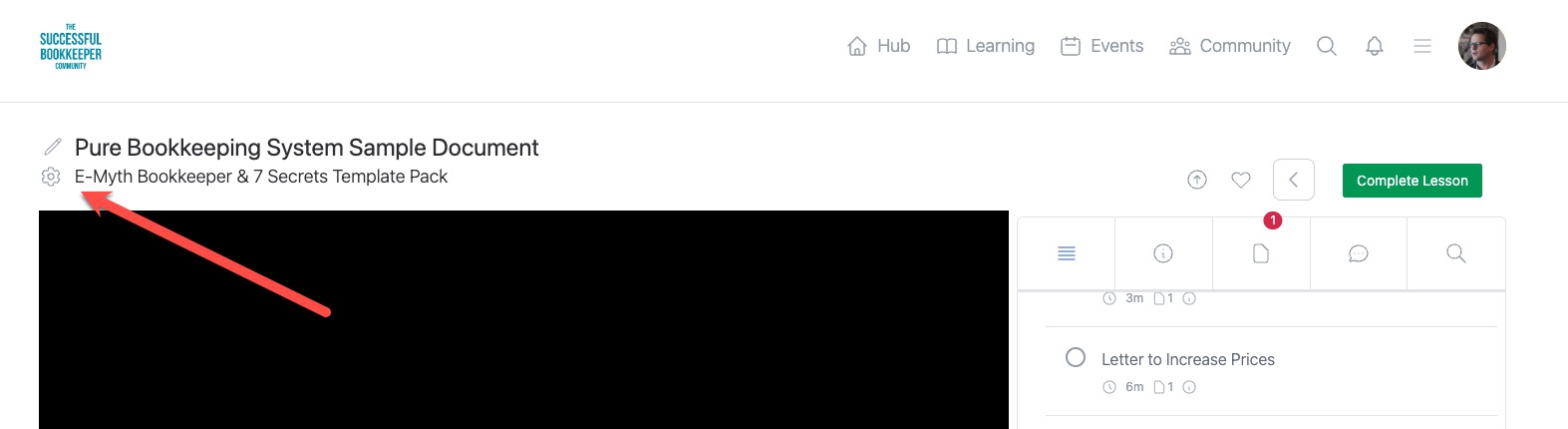
Click on the gear.
Method 2: Course Settings in Admin Menu
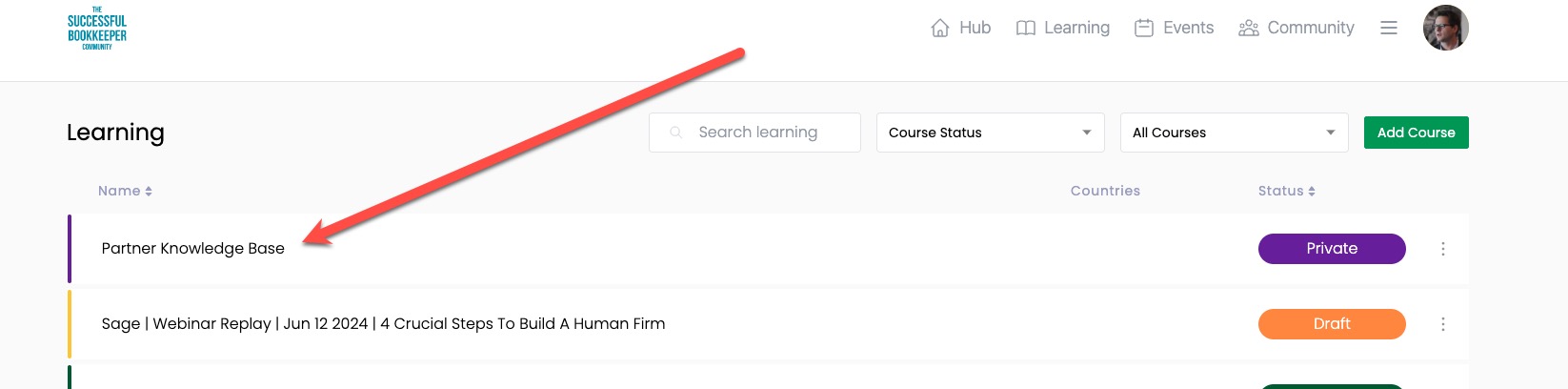
Hover over Admin Menu and select learning

Select a course
Editing the Course Name
2. Locate the Course Name Fields
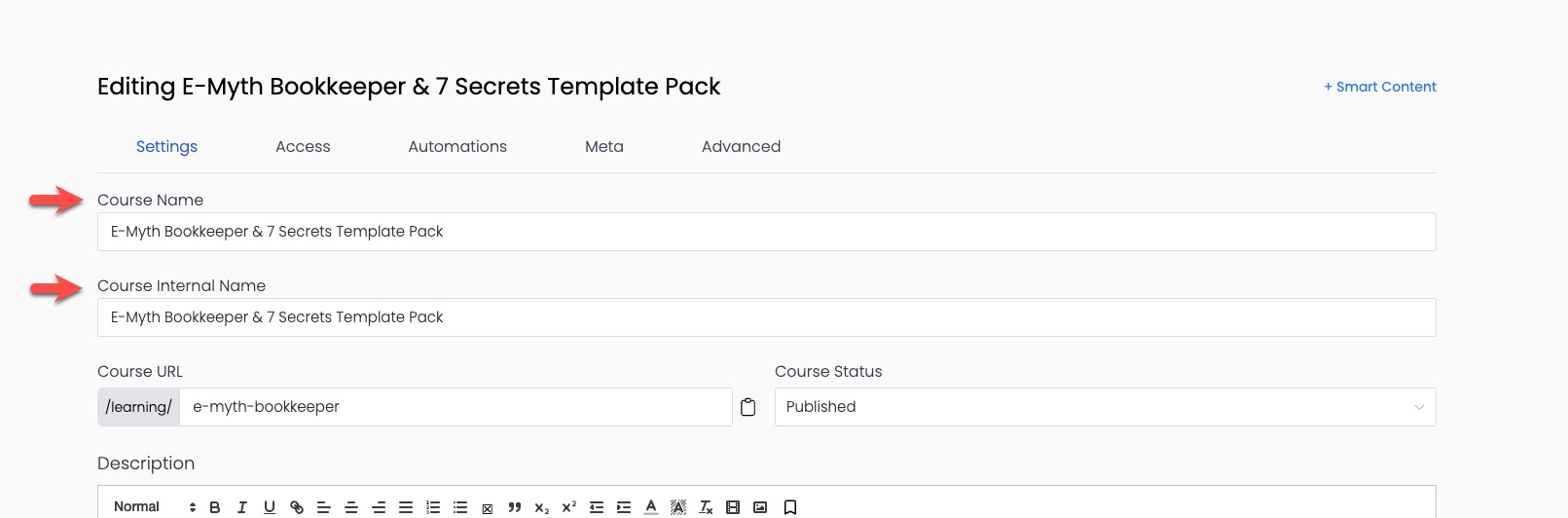
In the course editing interface, you will see two fields:
Course Name: This is what customers will see.
Course Internal Name: This is visible only to you and other administrators.
3. Update the Course Name
You can change the course name to anything suitable.


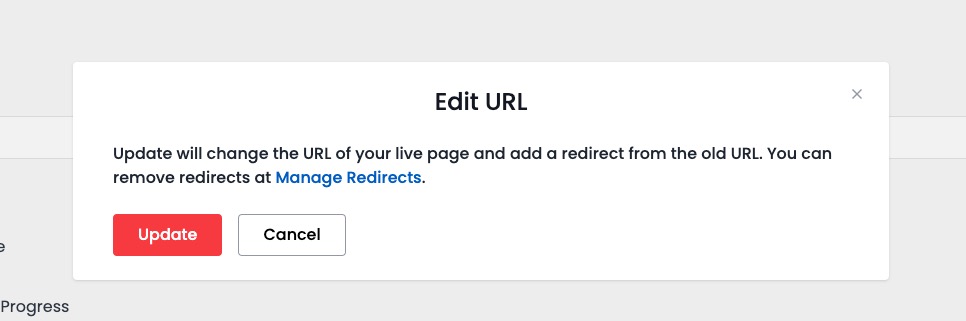
If you need to change the course URL, be aware that this will affect all the URLs built within the course. You will receive a warning if you attempt to change the URL.
We do not recommend changing the course URL unless you update all your links accordingly.
4. Save Changes
After updating the course name and/or internal name, ensure you save your changes.
Verify that the new names are reflected correctly both for external users and internally.